Every release, in plain language: what is new, what got fixed, and what it looks like. The app updates itself; this page is the changelog.
NEW IN 0.4.19Feature article·
Retrac gets its own tab, with Game Session
Update, 0.4.21: the Retrac tab is under maintenance. We have switched it off while we test it for stability with Retrac and ALEA, and the update turns off everything in it. It comes back once it passes that testing. See the 0.4.21 notes for details.
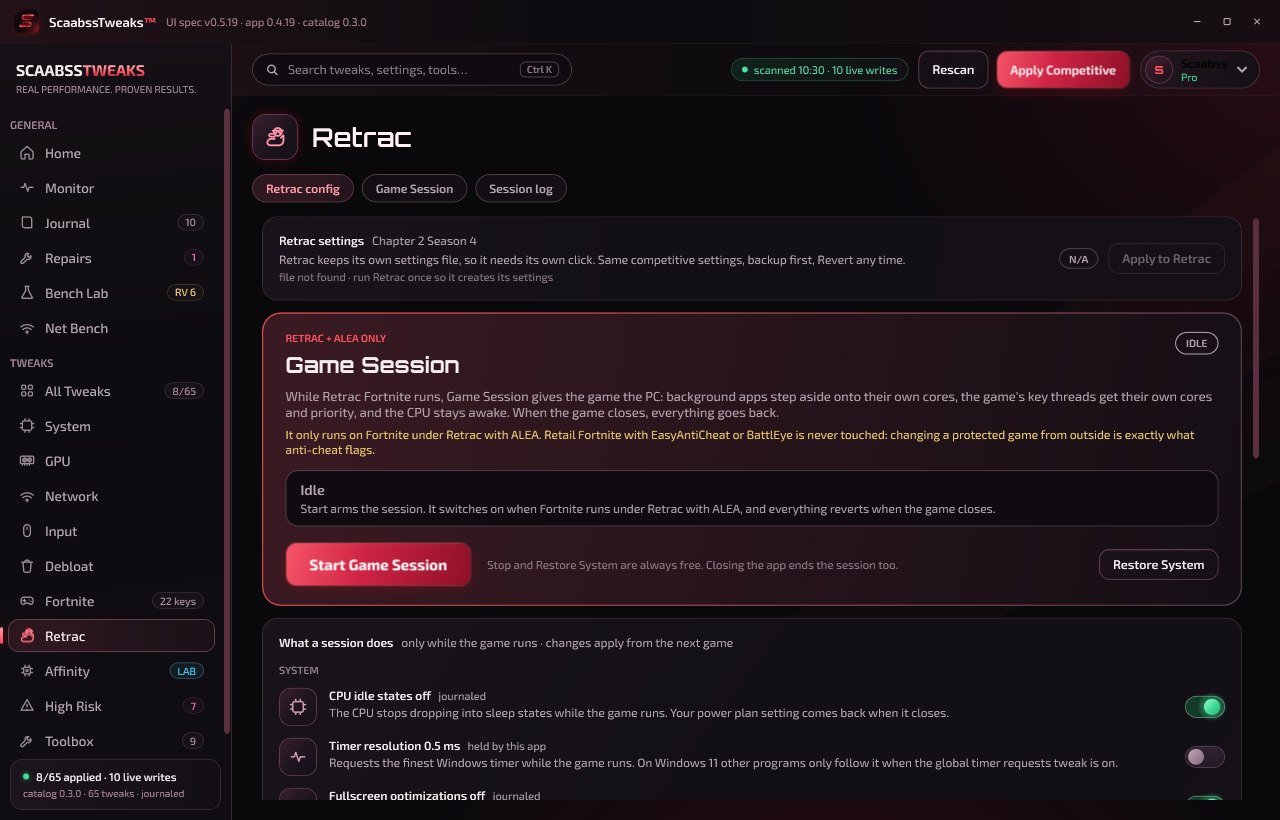
Playing Retrac? It now has its own place in the app. Your Retrac settings live there, and so does Game Session: press Start, launch Retrac, and while you play the PC puts the game first. When the game closes, everything goes back. This update also makes the Receipts check fairer and fixes a Setup error some of you hit. The full list of changes is right below this article.
01 A Retrac tab, right under Fortnite
Retrac has its own entry in the sidebar now (look for the duck in sunglasses). The Apply to Retrac button moved there from the Fortnite tab and works exactly as before: the same competitive settings as Fortnite, a backup first, and Revert any time. The Fortnite tab keeps a one-line shortcut so nobody has to hunt for it.
The shortcut left on the Fortnite tab.
02 Game Session: the PC puts the game first while you play
Press Start Game Session and it waits for Retrac. Once the game is running:
Background apps step aside. Discord, browsers and music move to below-normal priority and onto their own cores. They keep running and work normally when you alt-tab.
The game runs at high priority, and the graphics scheduler serves it first.
Nothing reaches inside the game. Since 0.4.20, Game Session leaves the game's own threads and memory alone, and never lowers the Windows desktop, taskbar, audio or network tools like ExitLag.
Close the game, or press Stop, and every one of those changes is put back. While the app is open, Start stays armed: the next time you launch Retrac, it switches on again by itself.
The Retrac tab: your Retrac settings on top, Game Session below.
03 Every part has its own switch
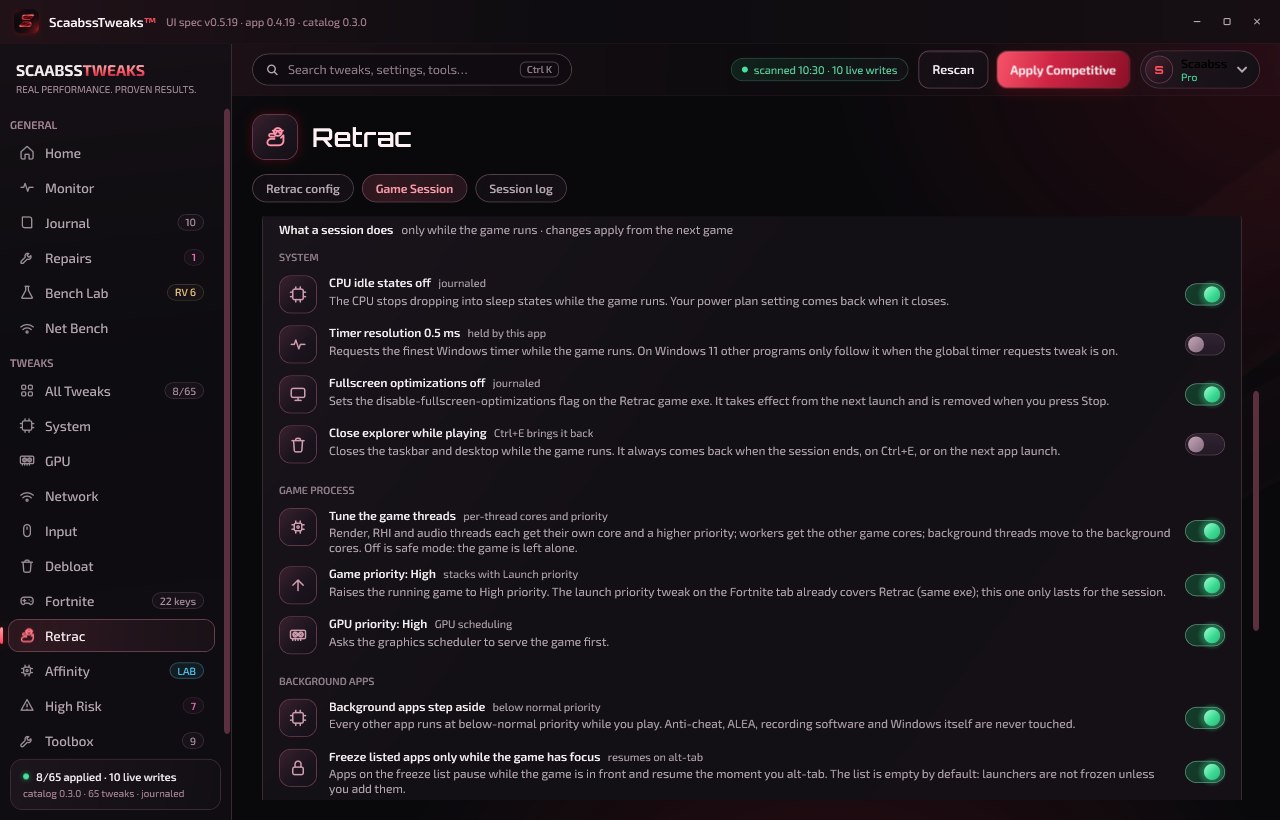
Nothing is hidden. Each piece of a session is a switch with a one-line explanation, grouped into System, Game process and Background apps. Optional extras, off by default, include keeping the CPU out of its sleep states, a finer Windows timer, closing explorer while you play (Ctrl+E brings it back), and an MSI Afterburner profile switch. Tune the game threads is experimental and off: it changes the game's own threads, and ALEA can close the game when it sees that.
What a session does, one switch per part.
The core layout is worked out for your CPU: AMD with one or two CCDs, Intel with or without E-cores, and small laptop chips each get their own map. The config is a plain text file you can open with Edit config, and every version you save is kept in a history you can restore.
04 Retrac with ALEA only. Never retail Fortnite.
Game Session changes the game process from outside, which is exactly what anti-cheat watches for. So it only acts when all of these are true:
Fortnite is running from the Retrac build, not from the Epic Games install;
no EasyAntiCheat or BattlEye process is running;
ALEA, Retrac's own anti-cheat, is running.
It checks again every second. If anything does not match, it does nothing to the game and the tab says why, for example "Retail Fortnite with EasyAntiCheat detected". Anti-cheat processes and ALEA are never paused, slowed or moved, whatever the config says.
05 The Retrac launcher closes itself
The launcher is only needed to start the game. About 10 seconds after the game window appears, Game Session closes Retrac.exe and the helper processes that belong to it. Windows, Teams, Widgets and other apps use the same kind of helper, so it only closes the ones it can trace back to Retrac. It is on by default and has its own switch.
06 Does it help on your PC? Measure it.
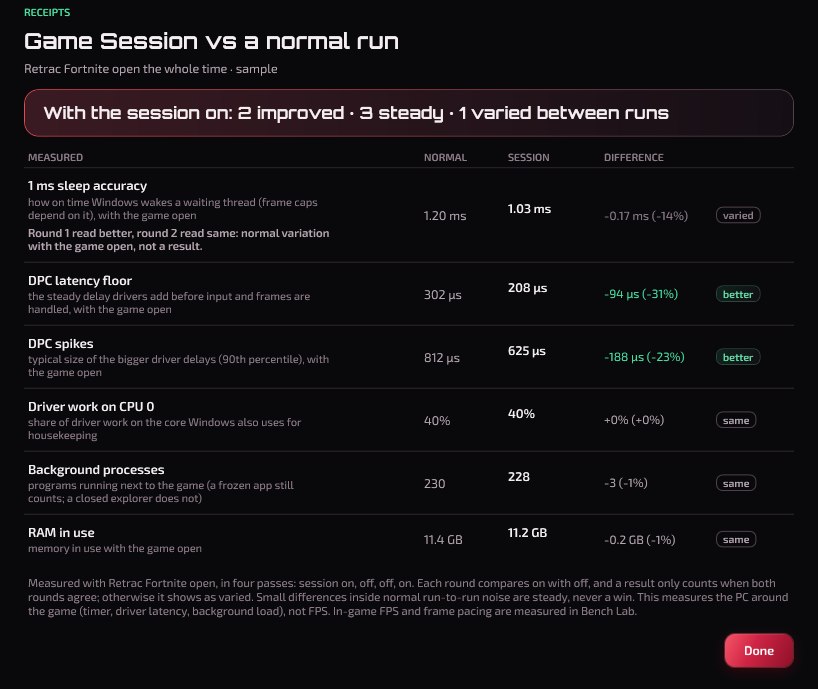
We do not promise a number. Instead, Compare with a session on the session log measures it on your own PC, with Retrac open the whole time: session on, off, off, on, about two minutes. A row only counts when both rounds agree, anything inside normal run-to-run noise reads as steady, and the session is switched back on when it finishes. It measures what we can measure honestly on any PC (timer accuracy, driver latency and background load), not FPS.
The compare window. Example layout with sample numbers, not a measurement: yours are measured on your PC.
07 A fairer Receipts check
The before and after check no longer calls one unlucky sample a result:
It waits for a quiet PC. Right after a restart Windows is still busy, which made the automatic check look worse than reality. It now waits until the PC has settled and tells you what is busy while it waits.
Nothing counts on one sample. Anything that moves is measured twice. If the two passes disagree it shows as varied: normal noise, not a reason to revert.
A clearer headline: improved · steady · to look at.
Ping and lag under load are shown, not judged, since they depend on your connection at that moment.
08 Fixes
Setup could stop with "could not save the baseline"
On some networks the router or ISP does not answer ping, so the network test came back empty and the baseline could not be saved, which blocked applying anything. The test now falls back to a TCP check, shows "no reply" when nothing answers, and the baseline always saves.
Stopping is always free. Stop and Restore System never need Pro. Closing the app ends a session and puts everything back, and if the app or PC ever dies mid-session, the next launch restores everything by itself. Revert is still free, always.
Get 0.4.19
Already installed? The app updates itself, or restart it to check now. New here? Download it below. Game Session is part of Pro.
Fortnite players got "could not read the Boost adapter state" every time. Fixed: Boost now starts for Fortnite NA-East Virginia matches.
Fixed
Net Boost for Fortnite. It failed every time with "could not read the Boost adapter state". Fortnite routes many more address ranges than Retrac, and Boost was not leaving room to read them back. Fixed and tested with the full Fortnite list.
Boost dropping out mid-game on Retrac for some players. One cause is fixed, and when it happens the app now records why, so we can fix the rest.
Version 0.4.29·
Net Boost fixes and Use Boost anyway
Boost now recovers from a leftover adapter that stopped it starting on some PCs, says clearly when it cannot start, and lets you use it even when your normal route measured lower.
Fixed
Net Boost could stop right after the first test on some PCs with no clear message. It now cleans up a leftover Boost network adapter and tries again, and when it really cannot start it says why in amber on the card.
New
Use Boost anyway. When your normal route measures lower, a button lets you turn Boost on anyway. Your numbers stay on the card, and you can turn it off any time.
Version 0.4.28·
Net Boost beta is here for Pro (NA-East only)
A measured route to NA-East game servers for Retrac and Fortnite. You see your ping without Boost and with it, every time, and it only stays on if it is lower.
New
Net Boost (beta, Pro): NA-East (Virginia) only for now. A new tab in the sidebar. It routes only your game traffic through our relay in Virginia. Works for Retrac on its Virginia server and Fortnite matches in NA-East Virginia. Other regions come after testing.
How it works. Open the game, then tap Turn on Boost in the lobby. Boost pings the game's servers on your normal route for 10 seconds, then through the relay for 10 seconds, and shows both numbers side by side. If Boost is lower, it stays on. If not, it turns itself off and tells you, with the numbers.
Live ping while you play, with a 60 second graph against your normal route, the server and relay you are on, data used and ping loss. The tray icon shows it too; right-click it to turn Boost off.
What goes through it. Retrac: only Retrac's Virginia game servers. Fortnite: the Virginia cloud networks its servers run on, which also host many websites and some voice chat servers, so some of that traffic goes through it too. Everything else stays on your normal connection. The relay keeps no logs of your traffic.
It turns itself off when you close the game, after a restart, or if the relay stops answering (you drop back to your normal route).
One quick question after each session: better, the same or worse? It is saved with the measured numbers so we can tune Boost.
Turn it on in the lobby: switching routes mid-match disconnects you. Some tournaments restrict routing tools. This is early testing: your own numbers are the only claim Boost makes.
Version 0.4.27·
See where your matches really ran
Net Bench now shows the server, city and cloud behind each of your recent Fortnite matches, and pings Virginia and Ohio separately.
New
Where your matches ran (Net Bench). Reads Fortnite's own log files on your PC and lists your recent matches: when, the mode, the city and cloud each server ran in, the server address and how long you played. It also shows Fortnite's own ping to every datacenter. Copy report gives you a plain text version to share, with no account name in it. Free, read-only, and the game is never touched.
Fixed
NA-East ping is now one city at a time. Epic's NA-East covers two datacenters, Virginia and Ohio, and Net Bench used to mix them from run to run. Each datacenter is now measured on its own, the region tile lists both, and the big number is your best one. Other regions with more than one datacenter work the same way.
Version 0.4.26·
New Pro yearly price, clearer plans
Pro yearly is now $49.99 a year for new members, everyone already on $29.99 keeps it, and every plan now shows what it saves.
Changed
Pro yearly is now $49.99 a year. Already on yearly at $29.99? You keep $29.99 at every renewal, forever, unless you cancel.
Clearer plan prices in the sign-in window. Yearly now leads with what it costs per month ($4.17 a month, $49.99 billed annually) and shows what it saves over monthly: 48%, or $45.89 a year. Lifetime is marked best value: it pays for itself in 13 months against monthly, or 2 years against yearly.
Version 0.4.25·
Try ExitLag from the Network page
The Network page now has a Try ExitLag button and a coupon code you can copy.
New
Try ExitLag from the Network page. A new card at the top of Network opens ExitLag in your browser through our referral link, and the Code button copies coupon code 10378605. It is a link only: nothing is installed or changed on your PC. Check the difference yourself in Net Bench.
Version 0.4.24·
Pro lifetime, and the Retrac tab is back
Pay once for Pro with the new lifetime plan, and the Retrac settings and launcher close are back for everyone.
New
Pro lifetime: $99.99, once. One payment, no renewals: Pro for as long as ScaabssTweaks is offered. It pays for itself in about 13 months compared with monthly. Already subscribed? Buy lifetime and your subscription simply stops renewing. Find it on the website and in the app's sign-in window.
Changed
The Retrac tab is open again. The Retrac settings (the competitive settings file for Retrac, backup first, Revert any time) and closing the Retrac launcher once the game boots work for everyone. Closing the launcher now runs on its own: it only looks at which apps are running and never touches the game.
Game Session stays under maintenance. It does not watch for Retrac and cannot be started, and each of its switches is off and marked as under maintenance while we keep testing it for stability.
Version 0.4.23·
A new look: black and ruby
ScaabssTweaks has a darker, sharper look with the logo up front. Everything works the same as before.
Changed
A darker, cleaner look. A true black background with ruby red saved for buttons, the logo and the page you are on. Everything else uses neutral greys, so text stands out and the red means something.
The logo leads the sidebar. The ScaabssTweaks logo now sits beside the name, and every page title has its icon in a glowing ruby tile.
Sharper text. Text now lines up on whole pixels, and buttons no longer draw their labels through a shadow, so words stay crisp instead of slightly soft.
Softer, consistent corners and spacing. Cards, buttons, tags and panels each use one corner size, and labels are plain tags instead of rounded bubbles.
Tweak cards lift with a ruby glow when you point at them.
Nothing else moved. Every tweak, setting, Receipts check, Bench Lab and the Journal work exactly as before. The Retrac tab stays under maintenance while we finish stability testing.
Fixed
Apply Competitive includes the NVIDIA driver profile every time. If you pressed Apply Competitive before opening the GPU page, the NVIDIA profile could be left out without a word. It is now checked first on every run, and if it is left out (no NVIDIA GPU, already applied, or reset by a driver install) the progress screen tells you why.
Version 0.4.22·
Clearer Pro plans
The yearly plan now shows what it works out to per month.
Changed
Pro plans are easier to compare. Yearly is $29.99 a year, which is $2.50 a month and 69% less than paying monthly. Monthly is $7.99 a month ($95.88 a year). The prices have not changed; the website, the app and checkout now show them side by side.
Version 0.4.21·
The Retrac tab is paused for stability testing
We have switched the Retrac tab off while we test it more. It comes back once it is stable.
Changed
The Retrac tab is under maintenance. After 0.4.20 some players still saw Retrac close on its own, and we have also seen Retrac close with ScaabssTweaks not running at all. Until we know exactly what is ours and what is not, the tab stays off. It comes back once it has passed stability testing with Retrac and ALEA.
Everything in it is switched off by this update. Game Session does not run and cannot be started, and nothing in the tab can be turned on. If you applied the Retrac settings, they are put back automatically as soon as Retrac is closed, the same as pressing Revert. Anything a Game Session changed was already put back when it stopped.
Nothing else changes. Your tweaks, Fortnite settings, Affinity Lab, Receipts and everything outside the Retrac tab work exactly as before.
Thank you to everyone who sent logs. They showed us where to look. We will post here and in Discord when Retrac is back.
Version 0.4.20·
Game Session fix for Retrac
Retrac could close by itself while Game Session was on. Game Session no longer reaches inside the game.
Fixed
Retrac could close by itself while Game Session was on. There was no error: the game just disappeared, sometimes mid-match, sometimes on the way back to the lobby. Game Session was changing the game's own threads, and ALEA, Retrac's anti-cheat, closes the game when it sees that. Game Session no longer reaches inside the game: it keeps background apps out of the way and runs the game at high priority. Your saved Game Session settings are updated automatically, and the previous version stays in the config history.
Game Session no longer lowers the Windows desktop, taskbar, Start menu, input or audio. On our test PC the taskbar crashed once right after a session lowered them.
Changed
Network tools are left alone. ExitLag and other routing or VPN tools keep their normal priority, since your game traffic may go through them.
CPU idle states off is now off by default. It keeps every core fully awake, which runs Intel 13th and 14th gen chips hot. You can still turn it on in the Retrac tab.
Tune the game threads is now its own switch, off by default and marked experimental. Leave it off unless you are testing: ALEA can close the game when it is on.
The session log says more: which apps were lowered, every change to a thread, and what was restored after a crash.
Version 0.4.19·
Retrac tab with Game Session, and a fairer Receipts check
Retrac gets its own tab with Game Session, and the before and after check no longer calls one unlucky sample a result.
New
A Retrac tab. Retrac now has its own place in the sidebar, right under Fortnite. The Retrac settings button moved there from the Fortnite tab and works exactly as before: same competitive settings, backup first, Revert any time.
Game Session (Pro). Press Start and it waits for Retrac. While the game runs, background apps step aside to below-normal priority and onto their own cores, the game's key threads get their own cores and priority, and the CPU stays out of its sleep states. When the game closes, or you press Stop, everything goes back. Each part has its own switch, and the config is written for your exact CPU (it keeps the game's key threads off the cores Affinity Lab gave your GPU, mouse or network). Every config change is kept in a history you can restore.
Retrac with ALEA only. Game Session only acts on Fortnite running under Retrac with ALEA. If it sees retail Fortnite, EasyAntiCheat or BattlEye, it does nothing to the game and tells you why. Anti-cheat and ALEA are never paused, slowed or moved.
The Retrac launcher closes itself. About 10 seconds after the game window appears, Game Session closes the Retrac launcher and its own helper processes, since it is only needed to start the game. On by default, one switch to turn it off. Other apps are never touched.
Always safe to stop. Stop and Restore System are free. If the app or PC ever dies mid-session, the next launch puts everything back by itself.
Compare with a session. Does Game Session help on your PC? From the session log, Compare measures it against a normal run with the game open both times: session on, off, off, on, about 2 minutes. A result only counts when both rounds agree, anything inside normal noise reads as steady, and it measures timer accuracy, driver latency and background load, not FPS. The session is switched back on when it finishes.
Changed
It waits for a quiet PC. Right after a restart Windows is still loading apps, updating and scanning, which made the automatic check look worse than reality. The check now waits until the PC has been on for a few minutes and the CPU is idle, and tells you what is busy (Windows Update, Defender, Fortnite and so on) while it waits.
Nothing counts on one sample. Anything that moves is measured a second time; it only shows as improved or worse when both passes agree. If they disagree it shows as varied, which is normal run-to-run noise, not a reason to revert.
New headline: improved · steady · to look at, instead of better and worse counts.
Ping and lag under load are shown, not judged. They depend on your connection and who else is using it at that moment, so they no longer count as a result.
DPC spikes use a typical value (the bigger spikes, without the single random worst one), so one freak spike cannot swing the result.
A check taken while the PC stayed busy says so and does not count.
Fixed
Setup could fail with "could not save the baseline" on some networks. When a router or ISP does not answer ping, the network test got no latency at all and the baseline could not be saved, which blocked applying anything. The test now falls back to a TCP check, shows "no reply" instead of a broken number when nothing answers, and the baseline always saves.
Version 0.4.18·
Receipts window fix
A small fix release for the new Receipts check.
Fixed
The Receipts results could not be closed on some screens. With a reason on every row the window grew taller than the screen and pushed its own buttons out of reach, so only Alt+F4 closed it. It now always fits the screen: the rows scroll while the heading and Done stay put, and Esc closes it too.
No window in the app can grow taller than your screen any more.
Version 0.4.17·
Setup, Receipts, and a 4 second scan
The biggest update since launch. The app now walks you through your first run, tells you exactly what to click on every page, and measures what your changes actually did on your own PC instead of asking you to take our word for it.
01 The scan went from about 47 seconds to about 4
Every check that used to start its own PowerShell window now runs in a small shared batch, eight checks at a time. Same results, card for card (we compared all 65 tweaks and 10 repairs before and after), and a progress overlay so you know it is working.
02 Guided first run
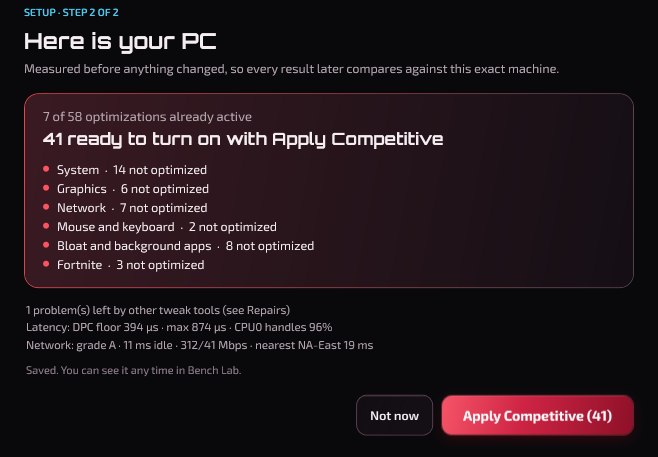
New installs open a short Setup. It measures your PC before anything changes (timer accuracy, DPC latency, background load, your network), shows what is already optimized and what is not, section by section, then offers Apply Competitive right there. Choose Not now and nothing is touched.
Setup step 2: your PC as it is, and the one button that sets it up.
03 Home tells you the next step
The top of Home now says how many optimizations are ready on this PC and puts Apply Competitive right next to it. Once you are set up, it points to the next useful thing (Affinity Lab, a check, a restart) instead.
Home on a PC that has not been set up yet.
04 One click per section, and On / Off at a glance
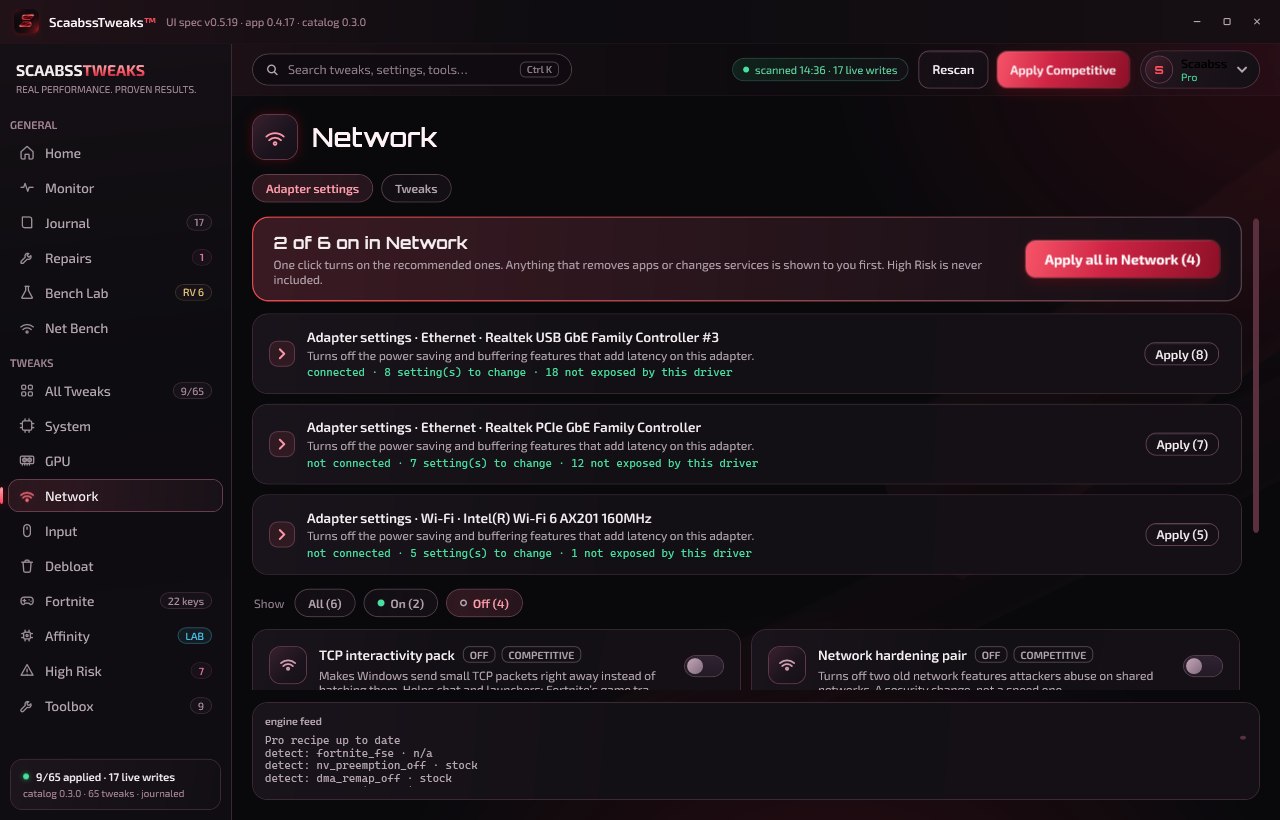
Every tweak page (System, GPU, Network, Input, Debloat) opens with a bar that says how much is on and an Apply all in … button for just that section. It is Apply Competitive, limited to that page: anything that removes apps or changes services is still shown to you first. The new Show: All / On / Off filter and the ON and OFF chips on every card show what is optimized and what is not.
Network with the Off filter on: only what is left to do.
High Risk now says so at the top: it is never part of any one-click. Read the cost on the card, flip the switch, confirm.
05 Receipts: what actually changed on your PC
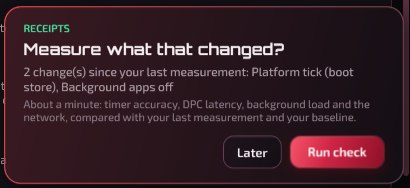
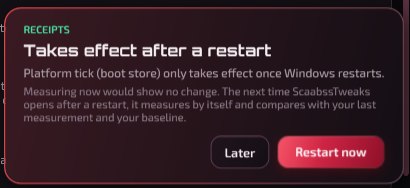
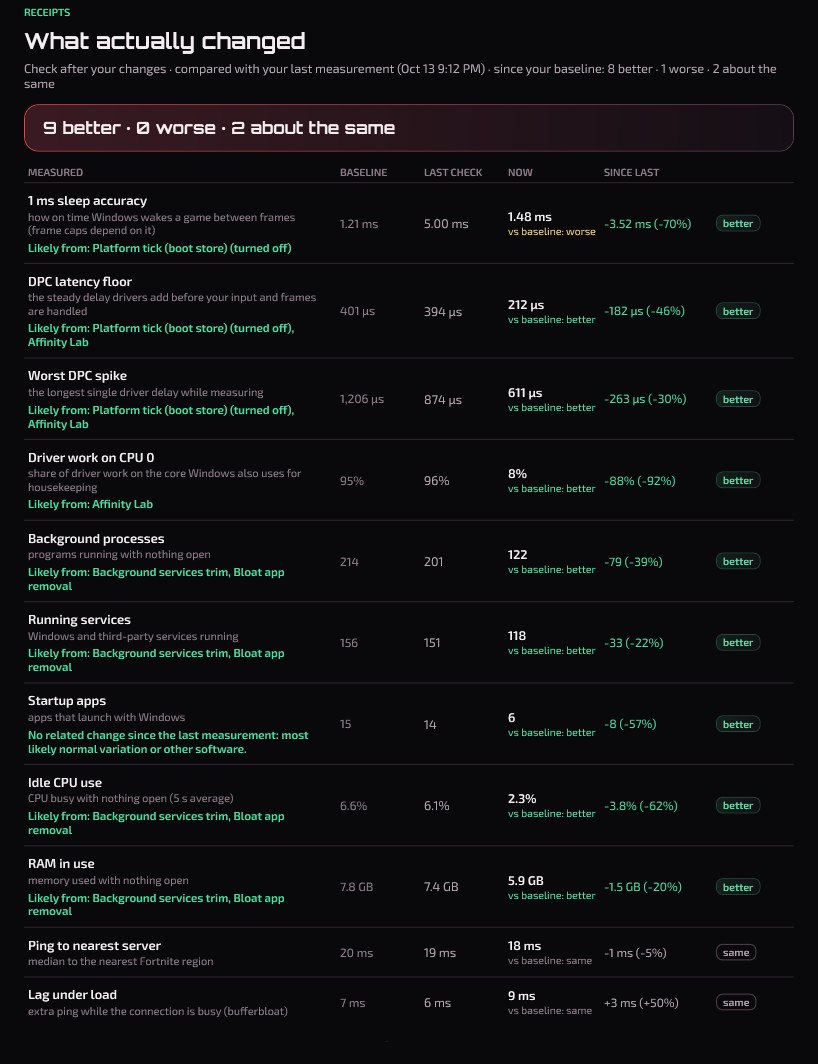
After you change something, a small prompt asks if you want to measure it. About a minute later you get a table with three columns: Baseline (your PC before anything), Last check, and Now. Every row says better, worse, or about the same, and small wobbles are treated as noise, never counted as a win. Where something moved, it names the likely cause from your own change history, or says it was most likely normal variation.
After a change that works right away.After a change that needs a restart: it measures by itself after you reboot.
The Receipts window. Example layout with sample numbers, not a measurement: yours are measured on your PC and land in Monitor and on each card.
We measure what we can measure honestly on any PC: timer accuracy, driver latency, background load, and your network. Frame rate depends on the game, the scene and the settings, so we do not put an FPS number on it.
06 Fortnite page, simplified
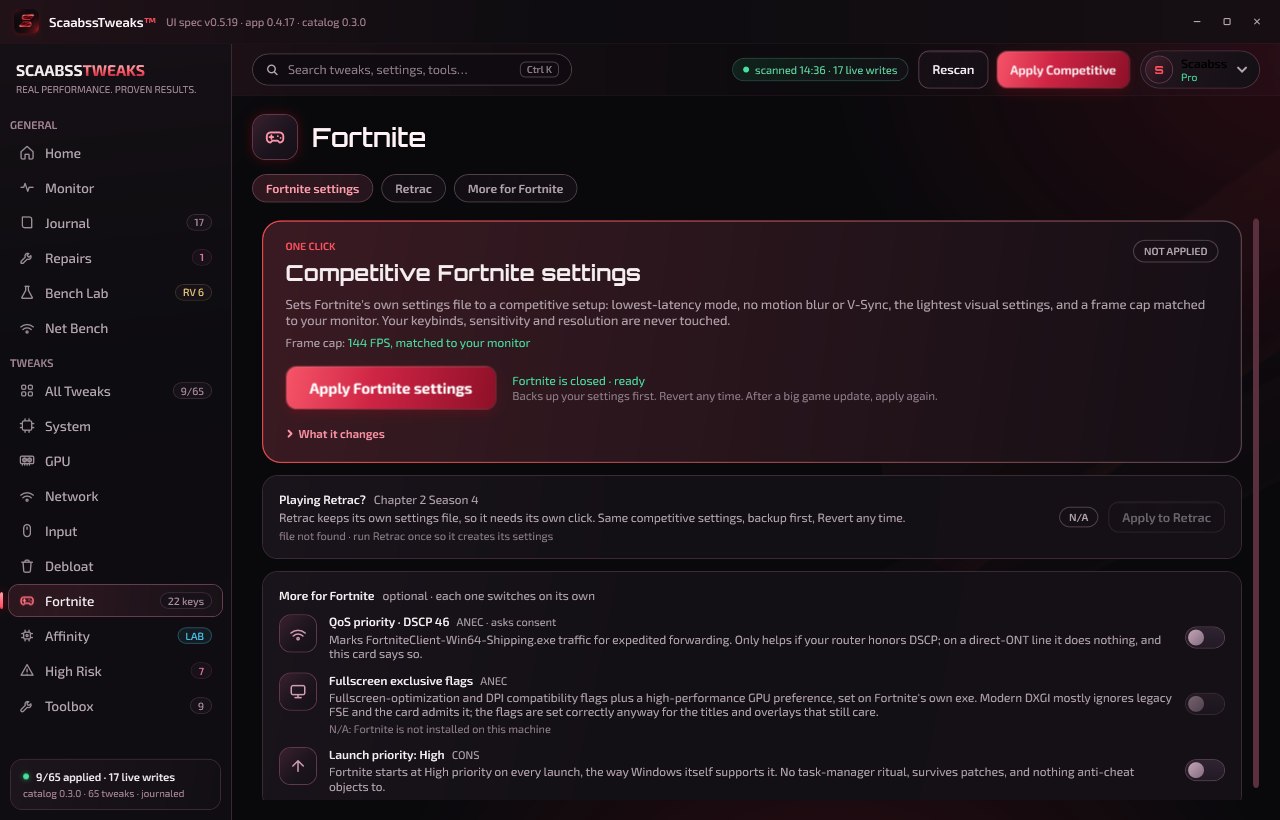
One big Apply Fortnite settings button with your frame cap matched to your monitor, a clear status (closed and ready, running, or not found), and Retrac on its own row. Everything optional sits below with its own switch.
The Fortnite page. Keybinds, sensitivity and resolution are never touched.
07 Smaller things you will notice
Plain-language cards. Every card now says what it does in one or two sentences. The technical detail moved into Details.
Restart pending pulses so you do not miss that a change is waiting on a reboot.
Affinity Lab next step. After a full Apply Competitive, the app points you to Affinity Lab if your GPU and input interrupts are not pinned yet.
Repairs: FOUND vs YOUR CALL. Things that are worth fixing say FOUND. Settings someone may have chosen on purpose say YOUR CALL, and settings ScaabssTweaks itself manages are no longer flagged as problems.
Faster updates. The app checks for a new version every 30 minutes while it is open, not only at launch.
08 Fixes
Frame caps undershooting on some laptops
Two timer settings (platform tick and dynamic tick off) made a 1 ms wait take up to 5 ms on our test laptop, so frame caps landed 10 to 15 percent low. Both are out of Apply Competitive and are now one-at-a-time cards with that warning. If you have them on and your cap undershoots, turn them off and restart.
"Failed" after apply on three cards
Wi-Fi power saving, the scheduled-task sweep, and the Store app removal could apply correctly but report a failed check. The checks are fixed and covered by tests.
Signed in, but the app said you were not
The account badge now reflects your sign-in right away, and the Pro state follows it.
Checks no longer fight the Monitor
Running a check turns Monitor's live DPC view off first, since both use the same Windows trace.
Revert is still free, always. Every change in this update goes through the same journal as before: one click puts back exactly what was there.
Get 0.4.17
Already installed? The app updates itself, or restart it to check now. New here? Download it below.